


Overview of Microsoft Copilot
Copilot Hero Image
Using Microsoft Copilot in Education
Copilot and Copilot Chat
Microsoft 365 Copilot is the new name for Microsoft 365 Office. From the Copilot hub, you can access:
- Copilot
- Templates for Microsoft products (i.e., resume and summary outlines, presentation templates)
- Online versions of Microsoft apps like Word, PowerPoint, and Excel
Copilot, commonly referred to as Copilot, is a chatbot tool developed by Microsoft designed to enhance productivity and creativity across various Microsoft 365 applications. It uses models created by OpenAI, the creators of ChatGPT, and functions similar to other AI chatbots you may have used online.
What can Copilot Chat do?
Like other AI tools, Copilot chat is also capable of a variety of tasks, including generating images, answering questions, analyzing documents, and creating new files. It works via a conversational interface in which users can create new “chats” with Copilot.
Copilot chat is also tailored to you. Through optional settings, you can have Copilot remember things about you to be more relevant to your responses, or you can write special instructions for the bot to process when responding to your prompts. It can also read through your emails in Outlook if you choose.
How Do You Access Copilot?
To ensure your data is secure under Marist’s Enterprise Data Protection, always sign in with your Marist account credentials and authenticate with Duo Security (if off-campus) before using any of the methods below:
-
Marist myMail / Microsoft 365 Hub: Log in through the Marist portal (or via microsoft365.com/copilot). Once signed in, select "Copilot" from the left-hand navigation menu.
-
Copilot on the Web: Visit copilot.microsoft.com from any web browser and click "Sign In" using your Marist credentials.
-
Microsoft Edge Browser: Click the Copilot icon located in the upper-right corner of the Edge sidebar to use AI alongside any web page you are viewing.
-
Mobile App: Download the official Microsoft Copilot app for iOS or Android and sign in with your Marist account to use the tool on the go.
Marist University's version of Microsoft 365 offers Copilot's capabilities directly within Outlook. It does not appear directly inside Word, Excel, PowerPoint, or other Microsoft 365 applications. This doesn't mean Copilot Chat can't help you with your Microsoft 365 work. You can bring supported Word documents, Excel spreadsheets, PowerPoint presentations, and other files into Copilot Chat and ask it to summarize information, analyze content, identify key points, develop new material, and more. Copilot can also create content and supported output files that you can then use and continue editing in your Microsoft 365 applications.
AI Guidelines
AI Tools supported by DE
Step 1:

On the left sidebar, click apps to access Microsoft 365 tools on the web, like Word, PowerPoint, and Excel.
Step 2:

In the top right, you can verify that your chat is secure through Marist’s enterprise license.
Step 3:
Use the center input box to write a prompt and send it to Copilot chat. Use the + icon to add relevant files, or the microphone icon to speak to Copilot directly.
Step 4

Enterprise Data Protection allows for you to input messages and not have them used in teaching the AI model
Prefer Not to Use Copilot?
We value your opinion! If you’re not looking to integrate generative AI with Copilot into your workflow, you’re under no obligation to use it. You can simply skip to the apps button in the left to access standard Microsoft tools.
Steps to uninstall Copilot from your device
Please follow the below steps:
-
Click the 9-dot grid icon in thupper-left corner of your screen, when logged into Outlook. This opens the list of available apps.
-
Click on "More apps" to expand the full list if Copilot isn’t immediately visible.
-
Scroll down to find "Use across apps" or the section where Copilot is listed.
-
Click the three-dot menu (⋮) next to Copilot.
-
Select "Uninstall" from the menu options.

Privacy and Security
Marist's Microsoft 365 license provides faculty, staff, and students with Enterprise Data Protection when you access Copilot and sign in with your Marist account credentials. There are four primary benefits of that protection:
Activity & History
Your prompts and responses are securely saved to your account so you can easily return to past chats, governed by Marist’s enterprise security policies.
Data Access
Copilot accesses only what you share: files attached via the + menu, files you directly upload (which save to OneDrive), and the active email or document currently open.
Privacy
Microsoft cannot access your data. Your interactions remain securely within Marist’s protected Microsoft 365 environment, subject to standard institutional compliance policies.
Training
Your chat data, prompts, and responses are never used to train Microsoft's foundational large language models (LLMs) used by AI.
Why Copilot?
In many ways, the basic version of Copilot is similar to other AI tools like Gemini and ChatGPT. However, there are a number of key differences.
Unlimited Use
Within reason, Copilot is able to be used extensively, with no limit or credit system to the number of images you can generate, files you can download, or prompts you can run and rerun.
Save and Share Prompts
Using the bookmark button underneath a prompt you’ve used, you can save it to your Prompt Library (appears under the input window on a new chat) to use again. You can also generate a link to a prompt to share it with others.
Security First
Under the license that Marist has, Copilot chat cannot train off your information, unlike many free tools which may do so. This keeps your information secure.
Always Updating
Copilot can search the web to find information relevant to today. Copilot chat is also updated with new models regularly, powered by OpenAI Azure.
Get started today
Access Copilot and Copilot Chat at Microsoft Copilot chat, or in the Microsoft 365. Dive in to unlock its full potential for your classroom.
-
Learn more about Copilot Chat
-
Read Microsoft's blog to explore more Copilot Chat in education

Microsoft Copilot: Workshops & Trainings
Learn Copilot Your Way Whether you need a quick tip or a deep dive, we offer flexible training resources to fit your schedule. Choose from in-person drop-in sessions, hybrid workshops, remote or in-person one-on-one tutorials, and on-demand asynchronous training.
Popular sessions include our Copilot: Partnering with AI Virtual Session and focused Copilot Drop-In Learning Sessions: Outlook.
Browse the calendars below to find the right format for you and register for your next session.
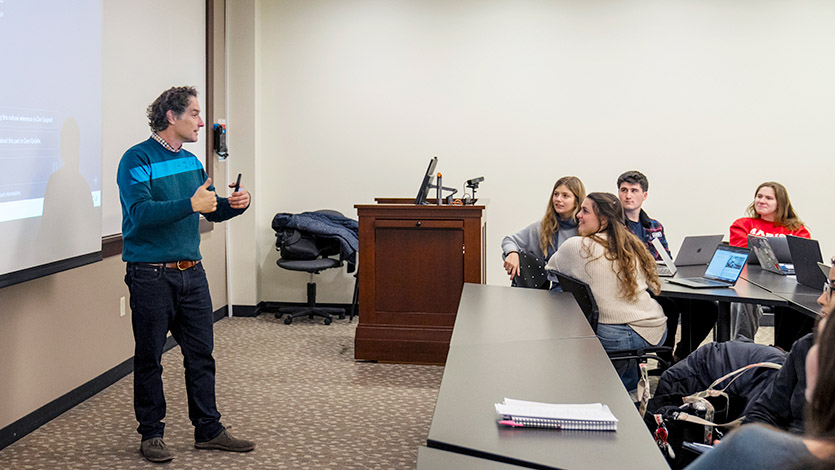
These are Marist's efforts to integrate artificial intelligence into their educational systems. Both institutions are focused on using AI as a tool to enhance teaching and learning, with a strong emphasis on ethical considerations and responsible implementation.
Additional Resources
Background image of a high-angle, wide shot of Marist's picturesque campus, nestled along the tranquil river at sunset.
Contact Us
If you have any questions or need further assistance with the tool, please don’t hesitate to contact us at 845-575-3572.